
How to Translate a Video: Review Subtitles and Choose the Right Output
Learn how to translate a video: upload spoken video, choose an audience language, review transcript and subtitle lines, then export subtitle files or create a localized video.
BEFORE YOU START
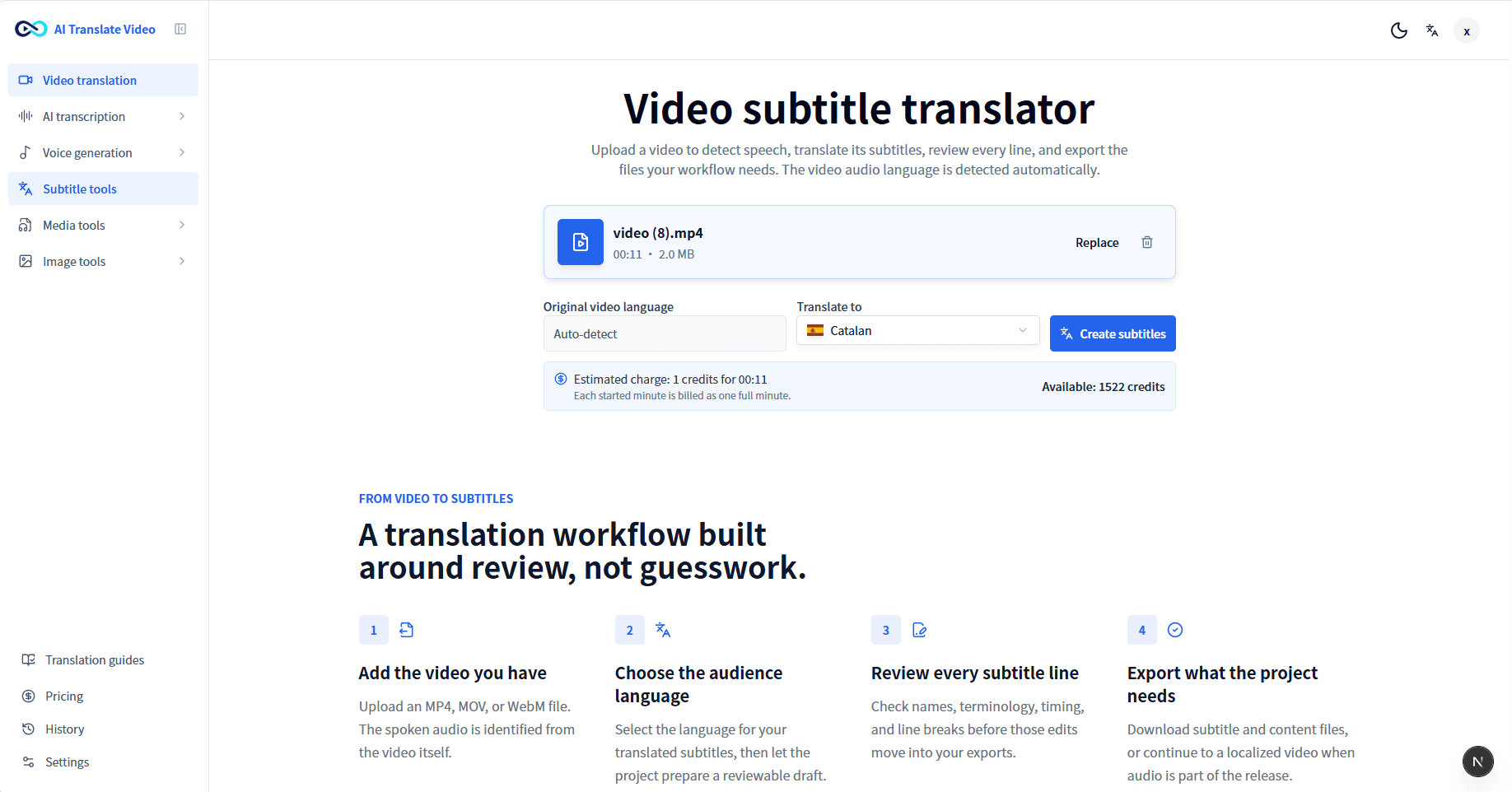
Use a spoken recording and choose the audience language
The workflow reads the spoken language from the video audio. The language you select is the translation output for your audience.
- Formats
- MP4, MOV, WebM
- File size
- Up to 1 GB
- Standard translation
- Up to 8 min 20 sec
- Lip sync
- Up to 8 min
An estimated charge appears before processing, followed by a confirmation step. Subtitle creation is 1 credit per started minute and standard video translation is 2 credits per started minute at the time this guide was reviewed. Lip sync has a separate rate. Review the estimate shown for the selected mode, then see Pricing for current plans. Pricing
THE WORKFLOW
Translate a video in five reviewable steps
Each decision has a clear place in the workspace, so the release is checked before it leaves the project.
- 01
Upload the source video
Start with the original recording and the spoken audio you want to localize.
- 02
Choose the audience language
The video audio determines the spoken language; choose the language viewers need.
- 03
Review the transcript
Check names, product terms, abbreviations, and wording that can change meaning.
- 04
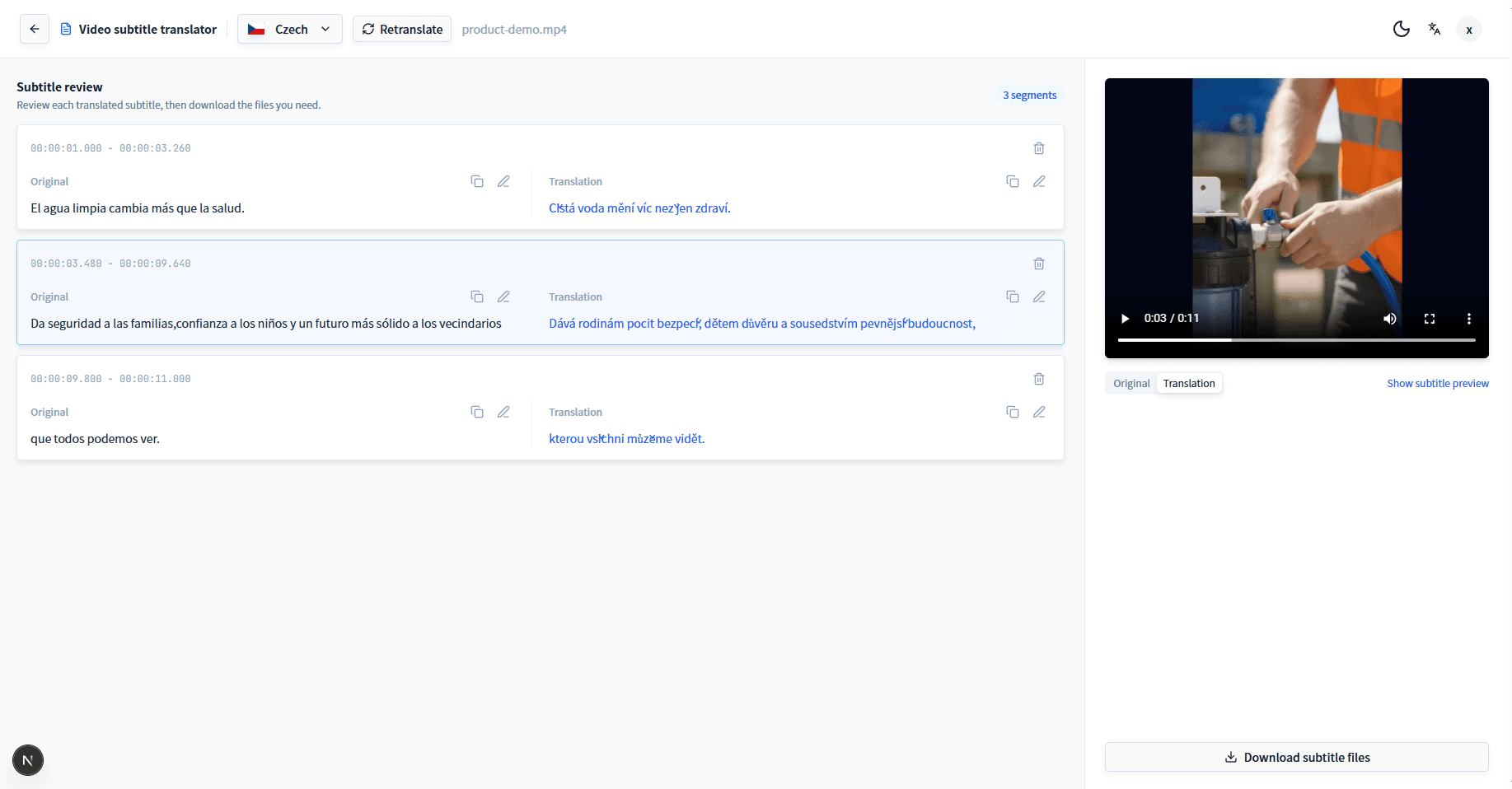
Review subtitle lines
Watch for timing, line breaks, numbers, dates, units, and calls to action.
- 05
Choose the release output
Download subtitle files or continue to a localized video workflow.
IN THE WORKSPACE
Check the input first, then review the subtitle draft in context
These are the two moments that determine whether the project is ready to export or needs more review.
CHOOSE THE OUTPUT
Match the output to the release
Subtitle files, standard translation, and lip sync solve different publishing needs.
Subtitle files
Choose this when a player, editor, reviewer, or publishing workflow needs caption files.
Open Video Subtitle TranslatorStandard video translation
Choose this when viewers need translated speech while the original visuals and lip movements stay unchanged.
Open Video TranslatorLip sync translation
Choose this when a visible speaker needs synchronized mouth movement in the localized release.
Learn about lip syncBEFORE YOU PUBLISH
Treat automatic output as a draft that needs a release check
Review the content that represents your organization before it reaches an audience.
- Names, product terms, and abbreviations use the intended spelling.
- Numbers, dates, units, currencies, links, and calls to action are correct.
- Subtitle timing and line breaks are readable while watching.
- The wording fits the intended audience and market.
- The chosen output matches the way the release will be published.
WHEN A DRAFT NEEDS ATTENTION
Resolve the issue before you export
Open the situation that matches the recording to see what should be checked in the review workspace.
The detected audio does not match the recording
Check the transcript against the recording before translation. The uploaded audio decides the spoken language, not a page URL or the audience language you select.
Several people speak, or music and noise cover the voice
Listen through the transcript with the original recording. Check speaker names, handoffs, and sections where overlapping audio makes words difficult to hear.
A product name, price, or screen label must stay exact
Compare each translated line with the original screen and recording. Keep names, URLs, model numbers, prices, units, and visible button labels consistent.
Subtitle lines are late or difficult to read
Play subtitles with the video before export. Split dense lines and confirm that key actions, numbers, dates, and calls to action appear at the right moment.
A PRACTICAL REVIEW EXAMPLE
Check a product demo before it reaches an English-speaking audience
Choose English as the audience language, then compare the translated subtitle draft with the recording. Check the product name, visible button label, price or unit, and the timing of the call to action. Download SRT or VTT when captions are the deliverable; use standard translation when the release needs translated speech.
FAQ
Questions before you start
Can I translate a video if I do not know its spoken language?
Yes. The workflow checks the spoken audio in the uploaded video to identify the source language. Your audience-language choice determines the language of the translation output.
Can I review translated subtitles before exporting?
Yes. Review the transcript and translated subtitle lines before downloading subtitle files or continuing to a localized video workflow.
When should I export subtitles instead of creating a localized video?
Export subtitles when the next step needs caption files. Choose a localized video workflow when viewers need translated speech as part of the video experience.
What is the difference between standard translation and lip sync?
Standard translation changes speech without changing the original visuals or lip movements. Lip sync is the separate choice for visible speakers when synchronized mouth movement matters.
Which video formats and lengths can I use?
Upload MP4, MOV, or WebM files up to 1 GB. Standard translation supports videos up to 8 minutes 20 seconds, and lip sync supports videos up to 8 minutes.
When will I see the credit charge?
The workspace shows an estimated credit charge and asks for confirmation before processing begins. For a specific project, the estimate shown for the selected workflow is the current charge to review. Visit Pricing for current plan information.
What if the video has no audio or processing cannot start?
Upload a version with spoken audio if the source has no audio track. For an unsupported, oversized, or too-long video, adjust the input to the stated requirements. If processing is temporarily unavailable or fails, use Try again in the workspace; contact the team if the issue continues.
How this guide is checked
The AI Translate Video Team reviewed the upload steps, file requirements, duration limits, review flow, credit disclosure, and tutorial video against the current English workspace on October 31, 2026. Product limits and available exports can change, so confirm the current workspace and Pricing before beginning a new project.
Read the editorial standardsReady to start a project?
Upload a video when you are ready, or explore a language-pair guide if you are still choosing the audience language.